
All about ELID Software License Key
Elid Software License Key
There are 3 types of license available:
- Softkey : This is the old type of software key which is used by EsofWIN and Ontime
- Softkey2 : This is new type of software key which used by most of the new Elid standard software, such as E.WIN, E.Time, WinPro and TimePro.
- Rockey : Mainly used by system product, such as Matrix V system.
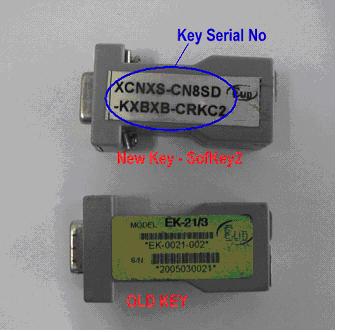
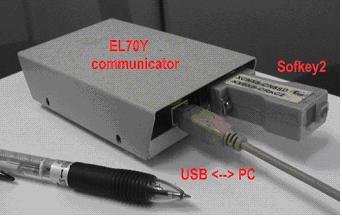
The article below will focus on the usage of Softkey2. Softkey2 are available in 2 packages. One type is external and is shown in the picture above, and needs to plug into EL70Y communicator. The other type is internal, that is, it is built into EL70W communicator.
1. E.Key : with DB9 connector. This is normally packed with the software that you purchase. It must be inserted into EL70Y communicator for key detection. Note that EL70Y has to be separately purchased. It is not part of the software.
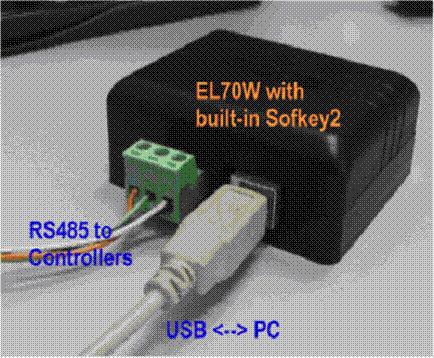
2. EL70W : If you have purchased EWL70W communicator, which provided USB to RS485 conversion, then the Sofkey2 is already built-in. In any case there is no slot in EL70W for you to insert the external Sofkey2. This is shown in the picture below.
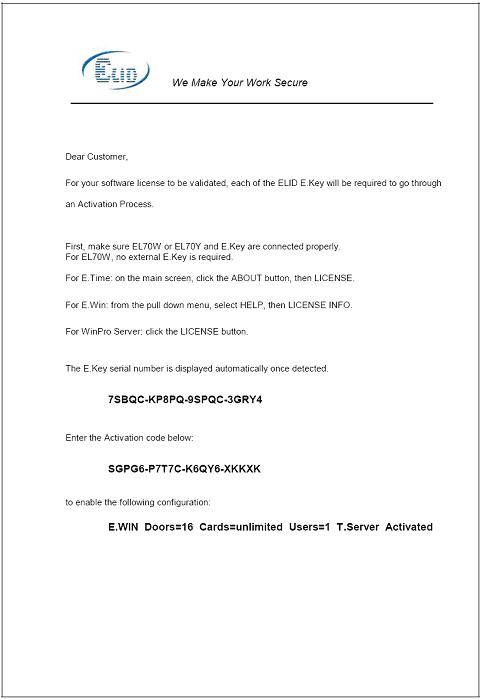
Softkey2 must be activated once you start using the software. Otherwise, the software will be expired in 60 days. A reminding message “N days left before software expired” will start to appear on the screen 14 days before expiry. Please obtain the activation code from the slip that is provided with softkey2 packaging box (Please refer to picture as shown below). If you have lost the activation code, you may request the activation code from Elid CSSD department by providing the software model, software serial number, softkey serial number and also purchase information.
How to activate the license in E.WIN
1. At E.WIN Manager, go to Help > License Information to get the screen as shown below. Please note that the font of ‘E.Key’ information will be in black color if key have not activated. After key activated, the font will become green color.
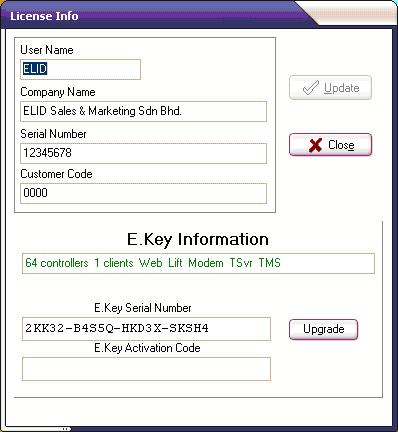
2. E.Key information will show the E.WIN package and module consisted in your license. The E.Key serial number will be automatically detected and display in the screen.
3. Enter the Activation Code to the ‘E.Key Activation Code’ column, and press ‘Upgrade’ button to activate it.
How to activate the license in WinPRO
1. At WinPRO Server, click at ‘License’ button to get the screen as shown below. Please note that the font of ‘E.Key’ information will be in black color if key have not been activated. After key activated, the font will become green color.
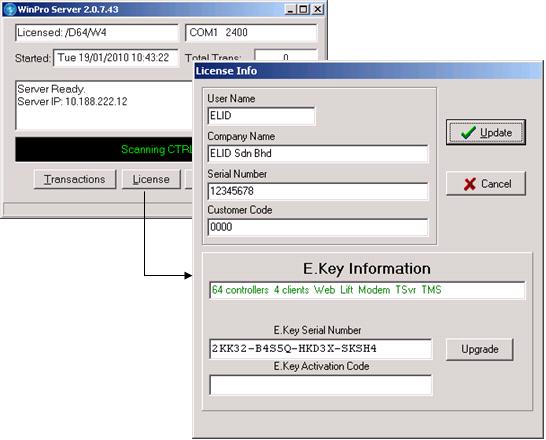
2. E.Key information will show the WinPRO package and module consisted in your license. The E.Key serial number will be automatically detected and display in the screen.
3. Enter the Activation Code to the ‘E.Key Activation Code’ column, and press ‘Upgrade’ button to activate it.
How to activate the license in E.Time
1. At ‘About’ menu, click at ‘License’ button, the screen as shown below will be appeared:
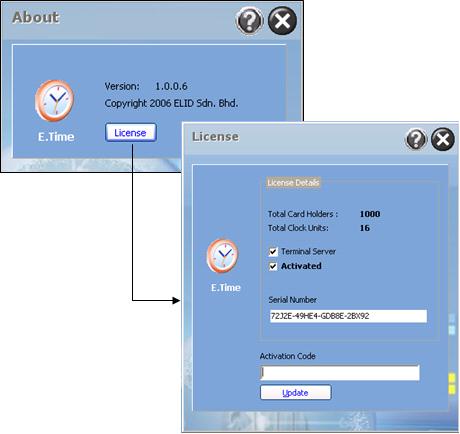
2. Enter the activation code and click ‘Update’ button to activate the key.
How to activate the license in TimePRO
1. At ‘About’ menu, click at ‘License’ button, the screen as shown below will be appeared:
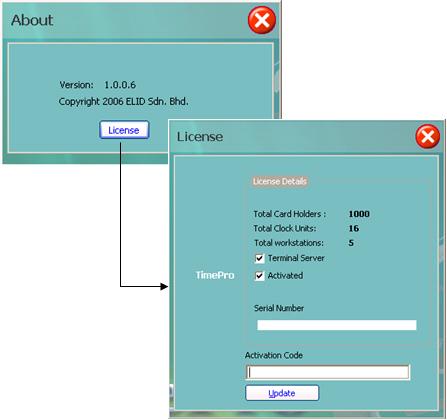
2. Enter the activation code and click ‘Update’ button to activate the key.
How to upgrade license
A new activation code will be given after you purchase the higher software package or added more optional module. You can simply re-enter your new activation code to the license information screen as shown above to upgrade the license.